
Automate your presentations with GAMMA
Learning objectives
By the end of this lesson, you will be able to:
- Understanding what GAMMA is and why it is a key tool for scientists.
- Create professional presentations from scratch or from existing documents.
- Customize templates, visual styles, and scientific content with precision.
- Export and share your presentations ready for conferences, classes, or meetings.
- Optimize your use of GAMMA by taking advantage of extra credits for the free version.
1. Introduction to GAMMA
GAMMA is an innovative AI-powered tool designed to transform scientific ideas or documents in impactful and well-structured presentationsIts main advantage lies in:
- Automate content design and distribution.
- Speed up the creation process (saving hours of manual editing).
- Offer professional templates and styles.
- Generate clear narratives to communicate scientific findings effectively.
Advantages for scientists
- Transform a article or laboratory report in summary slides.
- Maintain academic rigor: allow for the inclusion of citations, references, and graphs.
- Designs compatible with conferences, university classes, and research team meetings.
2. Registration and obtaining extra credits
To maximize your experience with GAMMA:
- Access the official site: https://gamma.app/signup?r=ib7bp3vd4gyauki.
- Create a free account with your institutional email, Google or LinkedIn.
- By registering through this link you will receive 200 additional credits in the free trial.
This will allow you to create more presentations and test more premium features.

3. First contact: Control Panel
Once registered:
- You will access the Dashboard from GAMMA, where you can manage all your projects.

- In the central menu you will find:
- “+ Create a new AI”: button to start new presentations.
- Gammas: list of all your projects.
- Options of collaboration, account settings and saved templates.
Advice: GAMMA organizes your presentations in the cloud, so you can access them from any device.
4. Create a presentation from existing content (+ Create new AI)
- Click on “Create new AI”.
- Select “Paste in text” to generate a presentation from the information you provide.

- Write your theme or central idea in the text box, followed by the content you want to present. Select the “Presentation” option and provide a clear structure for the information:

In this case, we talk about the role of artificial intelligence in drug discovery in a concise manner.
If you scroll down a little further, it will allow you to choose what you want to do with this content you have provided: automatically generate content from the notes you have provided, summarize the text you have written to make a more concise presentation, or use exactly the text we have attached. In this case, we select the latter option, as we have provided a clear and precise structure with which we can present the information comfortably. You also have the option to "Import files." This allows you to attach files in different formats. Sometimes it is useful to attach long files and select “Summarize long text or document”Although if you have the time, we always recommend providing the structure you feel most comfortable with and asking them to preserve the exact text. This ensures they only focus on presenting the information, while you own what you present.

Click “Continue to prompt editor.”
- GAMMA will automatically generate a slide structure, with the sections we provided in the previous section. On this page, you can edit:
- The text or structure of each slide.

- The order or number of slides: you can add or remove.

- The presentation style. You can click “View more” to see all the available options.

In our case, we chose "Fluo." A theme based on dark tones and yellow to achieve contrast. It's available among all themes after selecting "View more."

Click “Select theme” and continue. You can choose the source of the images. In this case, we've selected the default options: AI-generated images and automatic selection of the generating template. If you're looking for more specific content, you might want to select real images from the web or free stock images as the source of the images. Similarly, you can choose the style of the generated or selected images: we selected “Photorealistic” for a more realistic look, although Gamma's illustrations are highly recommended.

Finally, in the format section, in addition to selecting the presentation you want, you can choose the slide dimensions ("Fluid," "16:9," or "4:3"). In this case, we've stuck with the default option, although if you're planning to convert your presentation to PowerPoint or Google Slides, we recommend selecting "16:9."

- Review the proposal and click “Generate” for Gamma to start preparing the slides.

In just a few seconds, your presentation will be generated:

All generated content is editable from this interface. It's very easy to insert graphics or any additional explanatory content if needed. For example, if you free up space on one of the slides, you can select the option to insert graphics in the sidebar:

After clicking on it, it will show you several interesting options for displaying information in presentations. For example, we'll select the column chart:

A new page will instantly open allowing you to configure its values, edit the information displayed (axes, values, colors, whether the axis always starts at 0, etc.).

When we are satisfied with its content, we close this window and it will appear on the selected slide:

This is very useful for maintaining a consistent design while maintaining remarkable informational clarity. Other interesting blocks are found in the "Basic Blocks" section. These include element lists, tables, code blocks, etc.:

In just a few seconds, you can achieve a remarkable design for your presentations:

The "Images" section allows you to add new images to the presentation or replace one you don't like. For example, the following image isn't to our liking:

We can click on it and press the icon that shows a red crossed-out image to delete it.

Next, you can pass it an image URL, upload it from your internal storage, or create a new image with AI. We'll select one we've already downloaded:

We click on “click to upload” and select it:

Smart diagrams are also useful for displaying information in a schematic way. We can add a new blank slide to test them:

From the side panel, you can select the one you like best to display specific information and drag it onto your slide, then render it with text, emoji, or images:

It's a good idea to explore all the options. For example, you can add a timeline to explain the steps of an experiment:

You can also add social media content, such as a link to X (formerly Twitter), which will add the post to the slide:


6. Present the slidesTo do this, you can do it from the Gamma website using the presentation option, or download it in PowerPoint or Google Slides format and do it from there. We recommend, if possible, doing it from Gamma. The animations and transitions included by default give it a truly professional touch:


5. Export and share
When your presentation is ready, you can export it in several formats:
- Share online:
- GAMMA gives you a link you can send to collaborators (read or edit mode). Click “Share” and then “Copy link”:

- Discharge:
- PowerPoint (.pptx): ideal for conferences and advanced editing.
- PDF: Perfect for sending by email or including in dossiers. Less recommended for presentations, as you can't remove the watermark included with Gamma if your account isn't paid.
Within the settings window that opens when you click "Share," go to the "Export" section. From there, you can download the file in all formats:

Before a live presentation, check the downloaded file on the projector or room system to confirm compatibility.
Here's a trick to remove the "Made with GAMMA" watermark after exporting to PowerPoint:

You must go to the “View” section, select “Slide Master”:

Now remove the watermark from all slides. Select it and use the backspace button to delete it one by one on each slide:

Once removed, exit this mode by pressing the following button:

Now you'll have your PowerPoint presentation without a watermark, ready to present or edit any details you're interested in:

Plus, you can now save it as a PDF from PowerPoint without the watermark. That's the advantage of this trick.
6. Generate presentations from scratch
Another option, although less recommended, is to generate a presentation from scratch. Tell the artificial intelligence the topic you want to cover, and it will search for information and build a detailed presentation.
The procedure is similar to the previous one; the only difference is the first step. Now, instead of passing the text we want to include, we can give it an idea or a table of contents from which it will develop the content. Ideally, paste a detailed table of contents with the topics you want it to cover:

As you can see in the figure above, we now select the first option: "Generate from notes or an outline." After clicking Continue, we can select the amount of text per slide. To ensure clarity and ease of visual interpretation, it's best to select "Minimal" or "Concise." However, if the slides are going to be used for studying, it's sometimes a good idea to select "Detailed" or "Extensive."

As you can see, you can also choose the audience for your content and the tone you want to use. This allows you to create a format that's more relatable to the people who will be viewing your presentation.
Again, you can also select the theme, language, image font and type, slide format, and more. After generating, you'll have a complete presentation in just a few seconds:

7. Submit a paper
As we saw earlier, it's possible to import files (for example, presentations or PDFs) and create a presentation from them. This can be useful if the file isn't too complex and the information is easily accessible. If you want to work with a complete, real-world paper, we recommend taking it to Gemini and asking it to analyze it and generate a script for a GAMMA presentation. The results are much better, and you'll have automated a typically tedious process. Attached here is the professional prompt we typically use to ensure Gemini performs this task correctly:

Review what Gemini returns and fill in any remaining fields (if any). In this case, for example, "[Your name]." Take the revised text to Gamma and ask it to generate a presentation using the verbatim content, or to build upon it. In our case, we added the following:
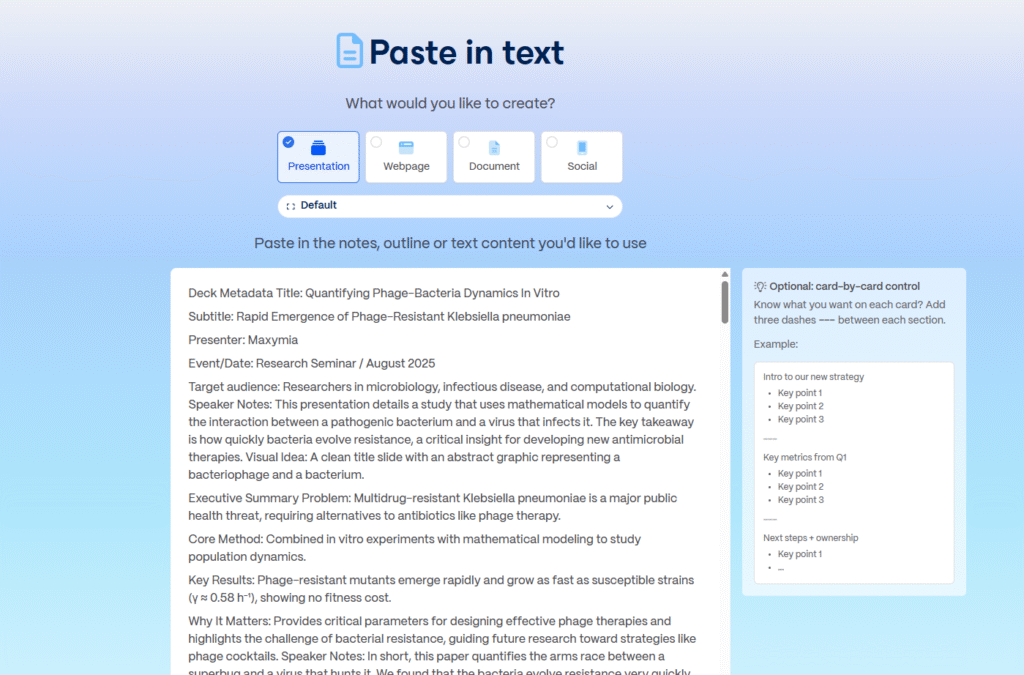
And we ask you to generate clearer and more user-friendly text based on all the content. This is achieved by selecting the first option:

Click Continue and complete the remaining steps as you have done so far. The next screen may display a "free form" format because the content is extensive. If you want GAMMA to divide it into sections, you can select the "split for me" option if it hasn't already done so automatically.
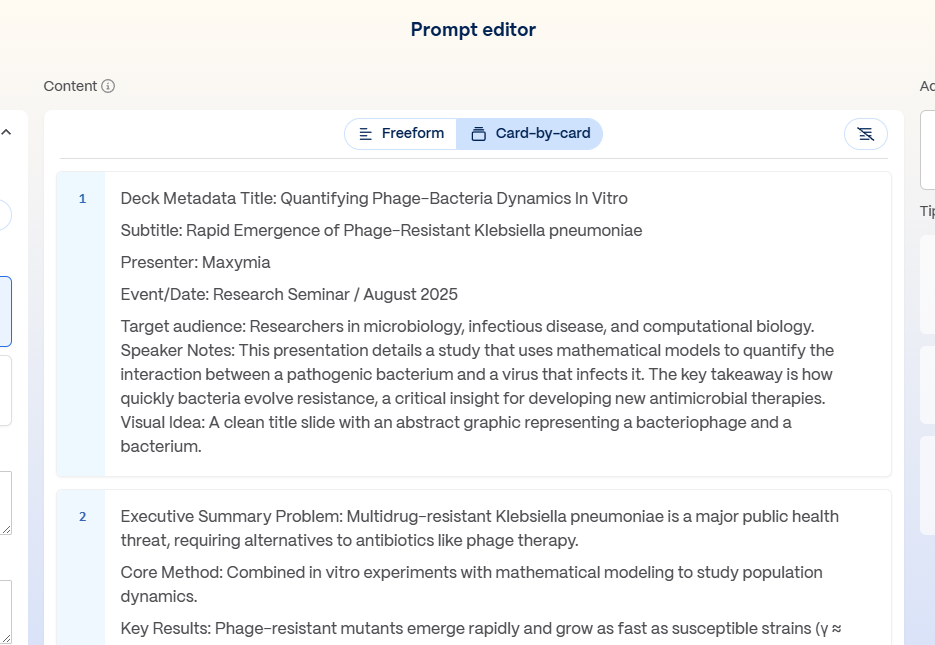
The results are spectacular. We've attached what we obtained for this specific paper below:
The ideal is to maximize the design and clarity of the information displayed, but modify the content so that presenting it feels as comfortable as if you had done the entire job manually. This is the most appropriate way to use artificial intelligence tools.
8. Additional tips
- Detailed prompts: The more specific your request, the better the GAMMA result will be. You can add this information just before the table of contents or content you submit to create the presentation.
Example: “Create a 10-slide presentation on CRISPR gene editing in plants, with charts and examples from recent studies.” - Collaborative work: You can invite your research team to edit in real time.
- Strategic use of credits: Each submission consumes credits. Take advantage of the additional 200 credits from the registration link to experiment with more projects.
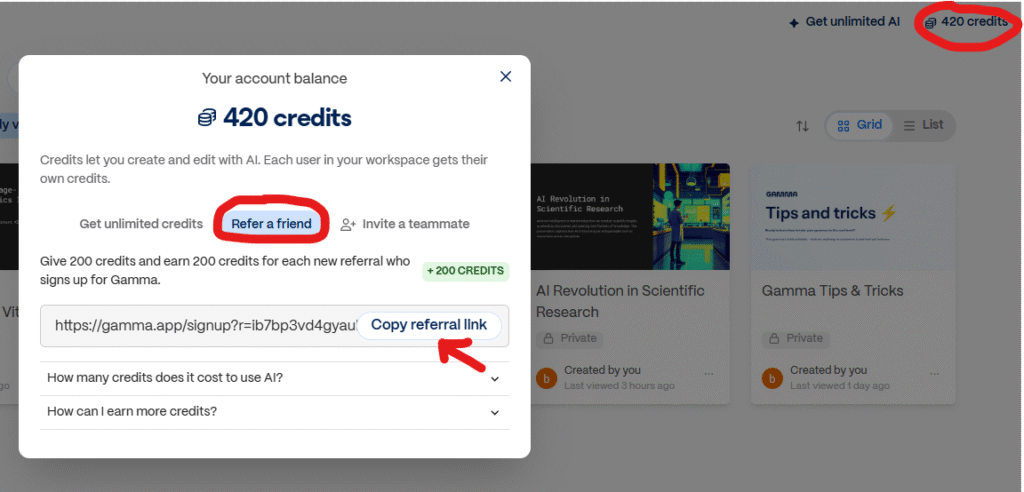
- Invite others and get more credits: You can earn additional credits by inviting other people to join GAMMA. Simply sign up using your link, and you'll both receive 200 additional credits. You can find your link in the top right corner of the home screen by clicking on your credits. Then, go to "Refer a friend" and copy your link:
9. Practical exercise
- Create an 8-10 slide presentation in GAMMA about your current line of research.
- Use your own content (articles, thesis abstracts, or lab reports).
- You must include:
- A different visual template than the default one.
- At least two scientific graphs or images.
- A final slide with conclusions and references.
Remember: Registering in https://gamma.app/signup?r=ib7bp3vd4gyauki you will get 200 additional credits in the free version to be able to create more test presentations.

